



Adobe Lightroom Classic and Adobe Photoshop are both formidable editing software, yet deciding which one to employ can prove challenging, whether you’re a novice, an enthusiast, or a seasoned professional.
Even though these two programs are commonly utilized by photographers, each serves a distinct purpose and boasts essential disparities. In essence, it’s imperative to deliberate carefully when selecting between Lightroom vs Photoshop.
In this article, I provide comprehensive insights into these two software options. I elucidate crucial parallels and fundamental distinctions, culminating in a deliberation on the most suitable editing software for your needs.
Are you prepared to make a choice regarding your post-processing software? Let’s delve right in!
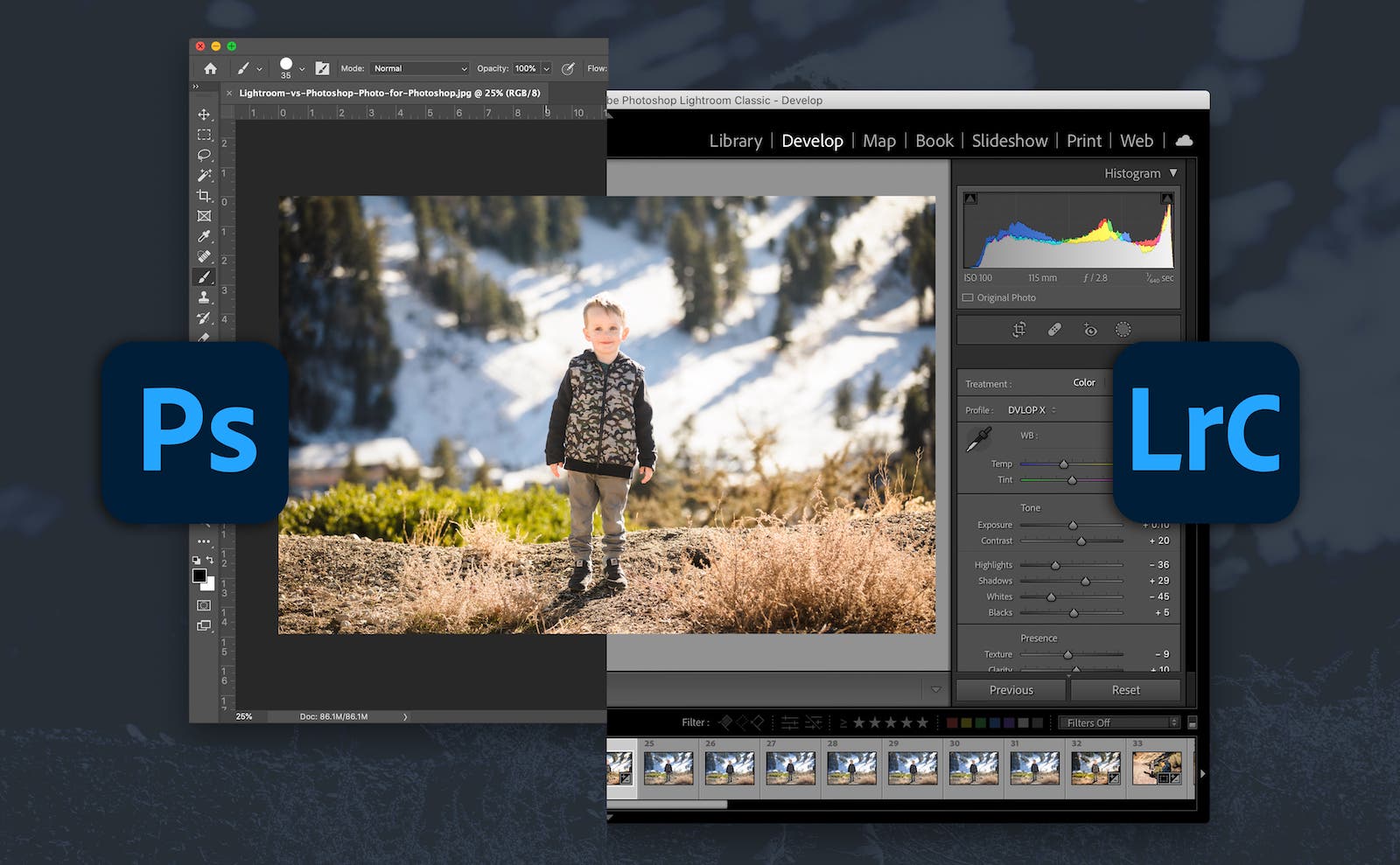
Lightroom vs Photoshop: An Overview
Adobe Lightroom and Adobe Photoshop share a common goal – image editing. However, their approaches and intended uses differ significantly. If your objective is to modify, fine-tune, or enhance your photos, both programs can fulfill that purpose.
Both applications support a range of file types, including JPEGs, PNGs, and TIFFs. While Photoshop doesn’t directly edit RAW files, it incorporates a highly advanced RAW processor. Interestingly, both Photoshop and Lightroom utilize the Adobe Camera Raw (ACR) processing engine to handle RAW image files. Consequently, when it comes to tasks like adjusting saturation, working with curves, correcting lens distortion, and more, you can anticipate similar editing capabilities in both programs. Additionally, both applications provide a comprehensive array of editing and manipulation tools, encompassing basic actions like cropping and exposure adjustment to advanced modifications such as brushwork, tone curve adjustments, and graduated filters. Furthermore, both applications offer a multitude of built-in effects, allowing you to instantly apply artistic effects like black and white or sepia.
In essence, Photoshop and Lightroom stand as proficient image editing solutions. Some photographers exclusively utilize Lightroom, neglecting Photoshop altogether, while others dedicate their workflow solely to Photoshop, never opening Lightroom.
Therefore, it’s essential to explore the merits and drawbacks of each program to select the software that aligns best with your requirements, beginning with:
Lightroom vs Photoshop: File Management
Lightroom takes a distinct approach compared to Photoshop when it comes to file handling. Lightroom doesn’t directly modify your photos or relocate them to different locations on your computer. Instead, it maintains the integrity of your image files, keeping them untouched, while every edit you make is recorded in a separate catalog file. This catalog file serves as a recipe book, containing instructions on how each photo should be processed.
In Lightroom, non-destructive editing is the norm. When you apply edits, such as adjusting exposure or enhancing saturation, the software merely logs these changes in its database without altering the original image. For instance, if you sent a photo edited in Lightroom to someone, the original file remains unaltered, allowing you to revisit and re-edit it whenever you wish.
Furthermore, Lightroom’s catalog itself is typically compact, consuming only a few hundred megabytes on your hard drive, even if you’ve imported a substantial number of files.
In contrast, Photoshop operates differently. When you edit a file in Photoshop, you work directly on the original unless you save it as a Photoshop PSD copy, which is usually several dozen megabytes in size. A PSD file encompasses all your edits, and to share the final image, you must save it in a displayable format like JPG or PNG. Essentially, if you desire non-destructive edits in Photoshop, you end up with three separate files for each image: the original camera RAW file, a PSD, and the final copy in a shareable format. The process unfolds as follows:
In summary, Lightroom and Photoshop appear to have similar editing processes at a glance, but a significant difference lies beneath the surface. In Lightroom, all edits are stored in a relatively small catalog file, whereas in Photoshop, each edit generates unique files for every image. Opting for Photoshop over Lightroom offers enhanced editing capabilities, but it demands more storage space and results in multiple versions of each image. The choice between the two often boils down to the level of editing power you require.
Photoshop vs. Lightroom: Editing Capabilities
Comparing Lightroom and Photoshop is akin to assessing an all-terrain farm vehicle against a massive farm truck. Lightroom is like the versatile all-terrain vehicle, nimble and swift, capable of performing various tasks such as hauling small objects and towing trailers. However, it lacks the raw power of a colossal farm truck needed for significant tasks like transporting hay bales, pulling horse trailers, or navigating through challenging terrain.
Recognizing that not everyone requires the full breadth of Photoshop’s capabilities, Adobe introduced Lightroom to cater to digital photographers. Lightroom offers the essential editing tools found in Photoshop but without the complexity, making it ideal for photographers who need to edit hundreds of images quickly.
In terms of editing capabilities, Photoshop far surpasses Lightroom. Photoshop boasts an extensive array of filters, brushes, and tools that empower you to perform hundreds of edits on your images. While Lightroom provides a handful of excellent local editing options, Photoshop offers unmatched precision.
What sets Photoshop apart is its use of layers for editing. In Photoshop, you can work with multiple layers, and each layer can be adjusted independently. This layer-based approach provides an incredible level of control over your edits, allowing you to fine-tune every element of your image.
In contrast, Lightroom follows a more linear workflow with no layer support, fewer editing tools, and less overall flexibility. It’s excellent for making quick, basic edits but lacks the depth required for intricate color and tone adjustments in specific areas of your images. Both programs include a History panel for stepping back through edits, but working with layers in Photoshop grants you unparalleled editing control.
For example, let’s consider adding a vignette to a portrait. In Lightroom, this involves adjusting the Post-Crop Vignetting tool’s Amount slider. While it’s a straightforward and practical solution, it offers limited customization. In Photoshop, you would create an adjustment layer, often using Levels or Curves, to darken the image. You can then apply a mask to restrict the effect to the outer edges and fine-tune opacity and blend mode settings. This is just the beginning, and as you become more proficient with Photoshop’s tools, you gain more control over the editing process.
Thanks to its vast array of features, including support for text, 3D graphics, and video, Photoshop excels in nearly any image-editing scenario. However, it has a steeper learning curve, and each process typically demands more effort. Lightroom, on the other hand, distills Photoshop to the tools most commonly used by photographers, making it highly appealing to this demographic.
Lightroom vs. Photoshop: Workflow and Image Organization
Photo organization is a domain where Lightroom excels, offering an end-to-end workflow solution tailored for photographers. Lightroom’s design caters to the needs of photography enthusiasts and professionals, encompassing tasks from importing images from your memory card to organizing, editing, sharing, and printing.
Lightroom’s comprehensive feature set includes support for keywords, virtual folders, slideshows, photo books, and prints. It serves as an all-in-one solution for many photographers, with some professionals going weeks or months without needing to open Photoshop because Lightroom covers their requirements.
In contrast, Photoshop doesn’t handle file transfers, image organization, slideshows, or photo book creation. Adobe Bridge, a free software, can be used to perform some workflow-related tasks like importing photos and organizing digital media on your computer. When paired with Photoshop, it provides a Lightroom-like workflow experience, albeit not as streamlined as using Lightroom exclusively.
If efficient file organization is your primary concern, Lightroom is unquestionably the superior choice. It stands out as one of the best image-organization programs available and often justifies its subscription price based on this capability alone. However, if you require the advanced editing capabilities of Photoshop, you can consider working with Adobe Bridge, or you may opt for an integrated solution by using both Lightroom and Photoshop.
Lightroom vs. Photoshop: Which Program Is Best for You?
By now, you’ve likely recognized that both Lightroom and Photoshop have their own strengths and weaknesses. So, which program is the best choice for you? The answer largely depends on your specific needs and preferences.
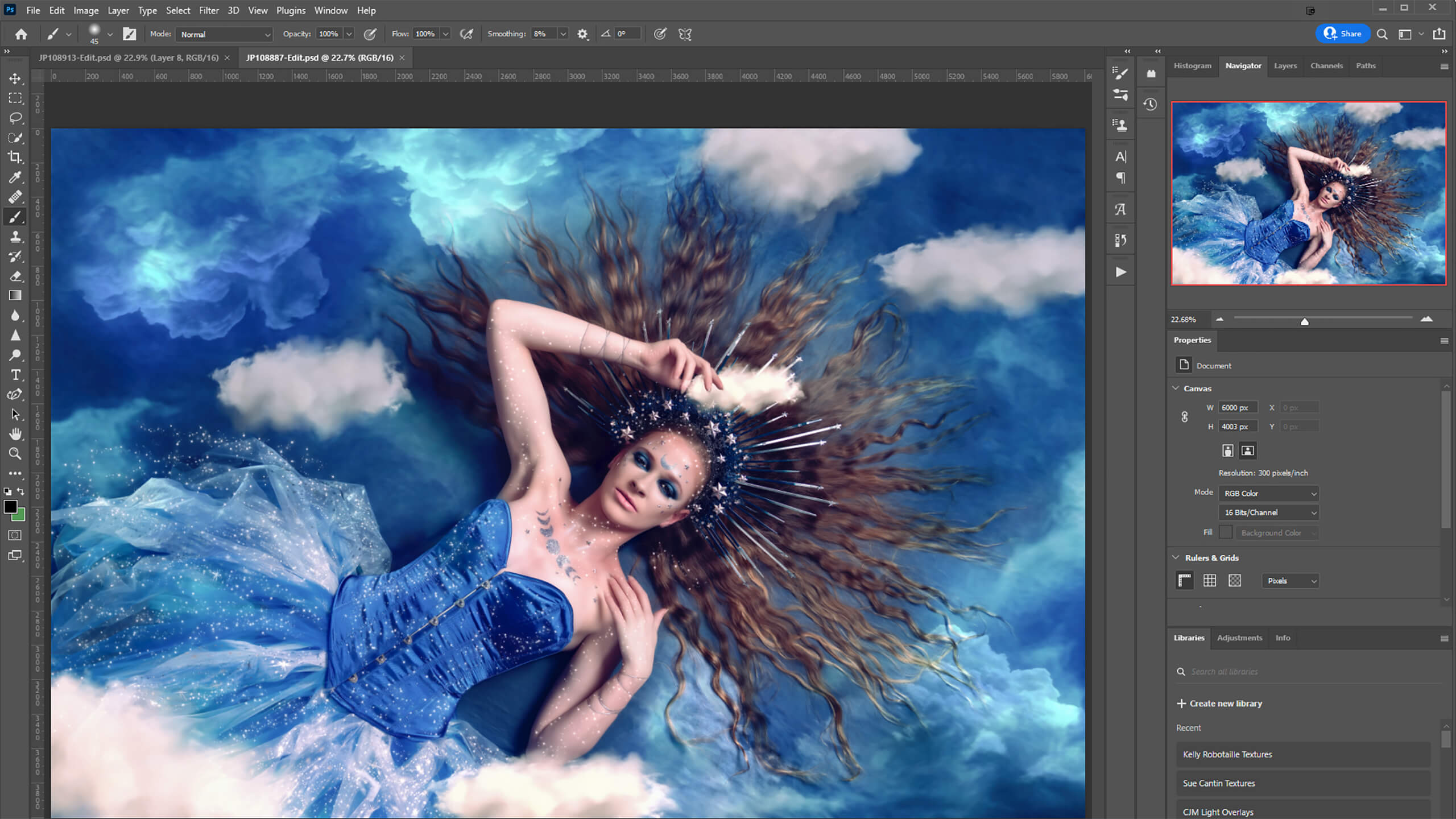
If you are deeply committed to image editing and seek pixel-level precision to meticulously post-process each image, Photoshop is likely the superior option. When coupled with Adobe Bridge for file management, it provides the capability to apply highly targeted adjustments using tools like brushes and gradients. Additionally, Photoshop supports advanced techniques such as focus stacking and high-level compositing.
However, if you prefer a program that offers basic to mid-level editing capabilities while efficiently managing your image workflow, Lightroom is the more suitable choice. Lightroom excels in digital asset management, ensuring that your images are well-organized.
Price is another important consideration. Both Lightroom and Photoshop require a monthly subscription fee as part of Adobe Creative Cloud. The basic Photography plan, which includes both Lightroom and Photoshop along with 20 GB of cloud storage, is available for $9.99 per month.
If you’re uncertain about which program to choose, you can opt for a Creative Cloud subscription, giving you access to both Lightroom and Photoshop. This way, you can experiment with both applications to determine which one aligns better with your needs and preferences.