



Did you know that the first digital photograph was captured in 1957? It had a resolution of just 176×176 pixels, a far cry from today’s high-resolution images. With the continuous advancements in digital photography, the importance of editing and enhancing our photos has become crucial. In this post, we will delve into the techniques of cropping, resizing, and rotating a photo, while also venturing into the realm of photo retouching.
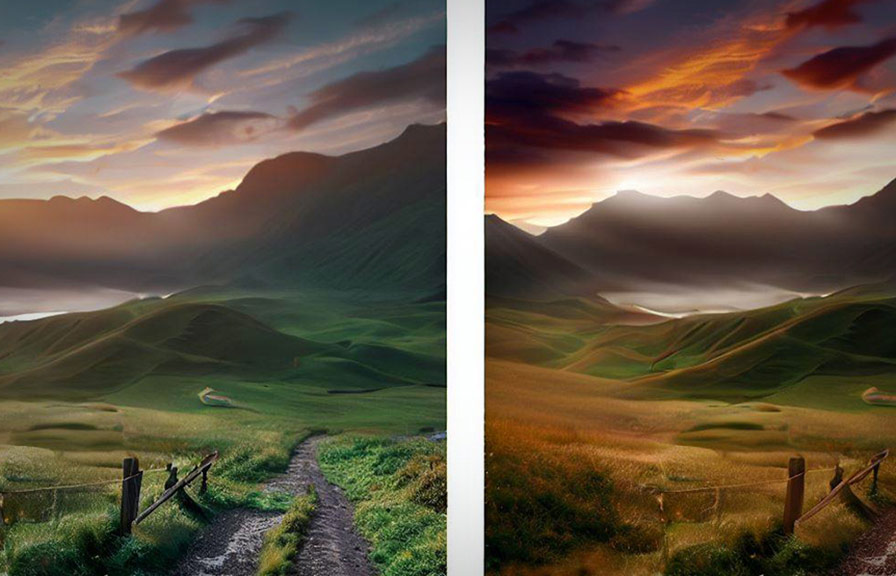
The Enchantment of Photo Retouching
Photo retouching, also referred to as photo touch-up, is a skill that enables you to enhance the quality of an image. With the right tools and techniques, you can remove unwanted elements, adjust lighting, and even change the overall mood of a photograph.
One of the most popular online platforms for photo retouching is Photorelive.
What is Photorelive?
Photorelive is an online platform that provides professional photo retouching services. They have a team of skilled editors capable of performing various tasks such as enhancing colors, removing blemishes, and much more. Whether you need to touch up a portrait or a landscape, Photorelive has got you covered.
Cropping, Resizing, and Rotating: The Fundamentals
Before delving into the more advanced aspects of photo editing, let’s start with the basics. Cropping, resizing, and rotating are essential functions that every photo editor should know.
How do I crop a photo?
Cropping a photo allows you to remove parts of the image that you don’t want. It can help you focus on the subject, create a more balanced composition, or simply eliminate unwanted elements. Here are the steps to crop a photo:
- Open your preferred photo editing software or online tool.
- Load the image you want to crop.
- Select the crop tool and adjust the cropping area to your desired size and position.
- Apply the crop and save your edited image.
How do I resize an image?
Resizing an image involves changing its dimensions without altering its aspect ratio. It’s useful when you want to reduce the file size for sharing or uploading, or when you need to fit an image to specific dimensions.
Here’s how to resize an image:
- Open your preferred photo editing software or online tool.
- Load the image you want to resize.
- Select the resize tool and enter the desired width and height.
- Make sure you maintain the aspect ratio to avoid distortion.
- Apply the resize and save your edited image.
How do I rotate a photo?
Rotating a photo is a simple way to correct the orientation of an image. It can be especially useful if you’ve taken a photo with your camera or phone in an awkward position or if the image has been saved incorrectly.
Here’s how to rotate a photo:
- Open your preferred photo editing software or online tool.
- Load the image you want to rotate.
- Select the rotate tool and choose the desired degree of rotation (e.g., 90 degrees clockwise).
- Apply the rotation and save your edited image.
Advanced Technique: Rotating While Cropping
Now that you’ve mastered the basics, let’s explore a slightly more advanced technique: rotating an image while cropping.
How do I rotate an image while cropping?
Rotating an image while cropping allows you to create a more dynamic composition or fix a crooked photograph. Here’s how to do it:
- Open your preferred photo editing software or online tool.
- Load the image you want to edit.
- Select the crop tool and adjust the cropping area to your desired size and position.
- Before applying the crop, look for a rotation option within the crop tool.
- Rotate the image to your desired angle.
- Apply the crop and save your edited image.
Which tool is used for resizing and rotating an image?
There are numerous tools available for resizing and rotating images, ranging from professional software like Adobe Photoshop to free online tools like Pixlr. Some popular options include:
- Adobe Photoshop: A powerful and feature-rich photo editing software.
- GIMP: A free and open-source alternative to Photoshop.
- Pixlr: A free, browser-based photo editor.
- Canva: An online design tool with a built-in photo editor.
- Paint.net: A free and easy-to-use photo editor for Windows.
These tools offer a range of capabilities for resizing, rotating, and editing images to suit your needs and skill level.
How to Resize and Convert an Image
Resizing and converting an image can be done simultaneously using most photo editing tools. Here’s how:
- Open your preferred photo editing software or online tool.
- Load the image you want to resize and convert.
- Select the resize tool and enter the desired width and height, making sure to maintain the aspect ratio.
- Apply the resize.
- Go to the “save” or “export” option in your photo editor.
- Choose the desired file format for your converted image (e.g., JPEG, PNG, GIF).
- Save your resized and converted image.
The Power of Creativity and Human Touch in Photo Editing
By understanding the nuances of lighting, color, and composition, you can transform a good photo into a stunning work of art.
As you explore the world of photo editing, remember that the key to success is practice. The more you experiment with different tools and techniques, the more you’ll develop your own unique style and vision.
So, don’t be afraid to think outside the box and push the boundaries of what you can create with your photos.
The Bottom Line
Cropping, resizing, and rotating images are essential skills in the world of photo editing and retouching. By mastering these techniques, you can greatly enhance the quality and impact of your photos. Additionally, platforms like Photorelive provide professional photo retouching services to help you achieve the look and feel you desire for your images.