



Did you know that the earliest photograph featuring a human subject dates back to 1838? In this historic image, a man having his shoes shined on a Parisian street appeared in the frame because he remained still for the extended exposure time required.
Fast forward to the present day, and we capture millions of photos daily, often with unwanted individuals in the frame. So, how can you remove a person from your photo without delving into the intricacies of Photoshop?
This blog post will guide you through various methods to accomplish this task, utilizing services like PhotoRelive retouching, photo retouching, and photo touch-up tools.
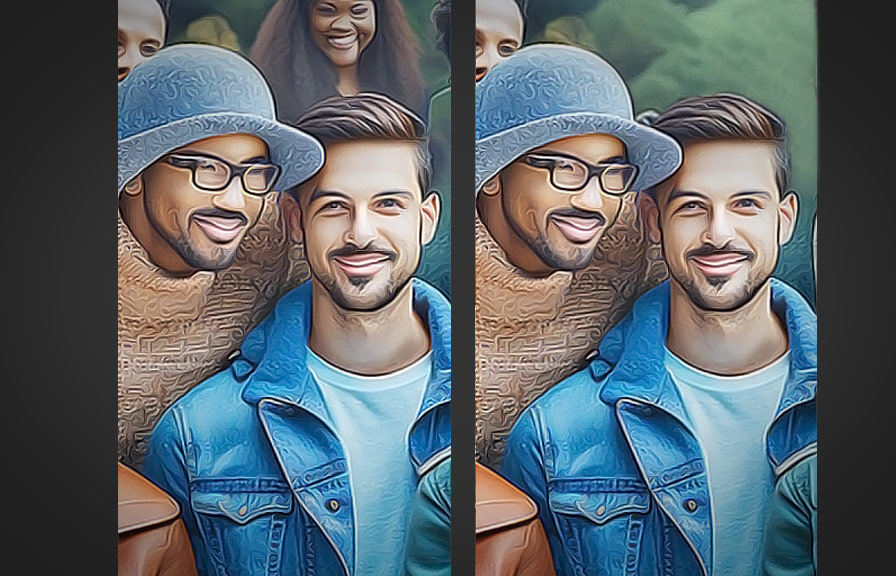
Removing a person from a photo without using Photoshop
For those who don’t have access to Photoshop or find it too complex to use, there are several methods to remove an unwanted person from your photos. Here are some user-friendly options to consider:
1. Use a mobile app
There are various mobile apps available for both Android and iOS devices that can help you remove a person from your photo. Some popular options include TouchRetouch, Snapseed, and Pixelmator. These apps typically allow you to select the person you want to remove and then use a cloning or healing brush to fill in the area with the surrounding background.
How to remove an extra person from a photo on your iPhone
If you’re an iPhone user, you can try using the built-in editing tools within the Photos app. Here’s a step-by-step guide:
- Open the Photos app and select the image you want to edit.
- Tap “Edit” in the top right corner.
- Choose the “Retouch” tool, which looks like a band-aid.
- Zoom in on the person you want to remove and use your finger to paint over them.
- The app will automatically fill in the painted area with the surrounding background.
- Tap “Done” to save your changes.
Keep in mind that the results may not be perfect, especially if the background is complex or the person covers a large area.
2. Use an online tool
Online photo editing tools can be a great option for quick and easy photo retouching. Some popular free options include Fotor, Pixlr, and Photopea. These websites typically offer a range of editing tools, including clone stamp and healing brush tools, which can help you remove a person from your photo.
How to remove someone from a photo online for free
Here’s a step-by-step guide on using an online tool:
- Go to the website of your chosen online photo editor.
- Upload your photo and open it in the editor.
- Select the appropriate retouching tool, such as the clone stamp or healing brush.
- Carefully paint over the person you want to remove.
- The tool will replace the painted area with the surrounding background.
- Save your edited photo and download it to your device.
Again, the results may vary depending on the complexity of the background and the size of the person you’re trying to remove.
3. Hire a professional retouching service
If you’re looking for the best results and don’t mind spending some money, consider using a professional retouching service like PhotoRelive. These services employ skilled photo editors who can remove a person from your photo with precision and accuracy.
To use a retouching service like PhotoRelive, follow these steps:
- Visit the PhotoRelive website and create an account.
- Upload your photo and provide instructions on the person you want to remove.
- Choose the desired turnaround time and any additional retouch photo or photo touch-up services you may need.
- Submit your order and wait for the edited photo to be delivered to your account.
By using a professional service, you can ensure high-quality results that may be challenging to achieve with mobile apps or online tools alone.
Final Thoughts
Removing a person from your photo doesn’t have to be a daunting task. With options ranging from mobile apps and online tools to professional retouching services like PhotoRelive, you can easily retouch photos and achieve the desired results without the need for advanced editing software like Photoshop. Choose the method that suits your needs and skills best, and you’ll be able to create photos that look exactly the way you want them to.